iSilo™
home | support | frequently asked questions
iSilo™
On the Palm OS®, when you use the default application launcher to delete an application, all databases with the same creator ID as the deleted application also get deleted. iSilo™ 2.x uses the creator ID 'ToGo'. iSilo™ 1.x/2.x documents also have the same creator ID, so if you use the application launcher to delete iSilo™ 2.x, you will also delete your iSilo™ 1.x/2.x documents.
The iSilo™ 3.0 application uses the creator ID 'Silo' while iSilo™ 3.x documents use the creator ID 'SilX', so both are different. The change of having the application creator ID be different from the document creator ID avoids the common problem of inadvertent deletion of document databases when the application is deleted. So since the iSilo™ 3.0 creator ID is different from that of the documents it is capable of reading (e.g., the iSilo™ 3.x, iSilo™ 1.x/2.x, and Palm Doc formats), if you delete iSilo™ 3.0, you will not also delete any documents.
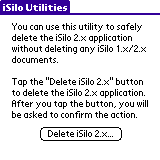
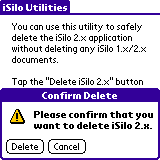
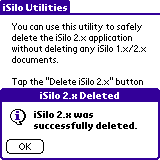
If you have both iSilo™ 2.x and iSilo™ 3.0 installed on your handheld, then you may wish to delete iSilo™ 2.x if you feel that you no longer need it. This article shows you how to delete iSilo™ 2.x without also deleting the iSilo 1.x/2.x documents installed on your handheld. To do this, you will download a small utility program to your handheld and use it to delete iSilo™ 2.x.